

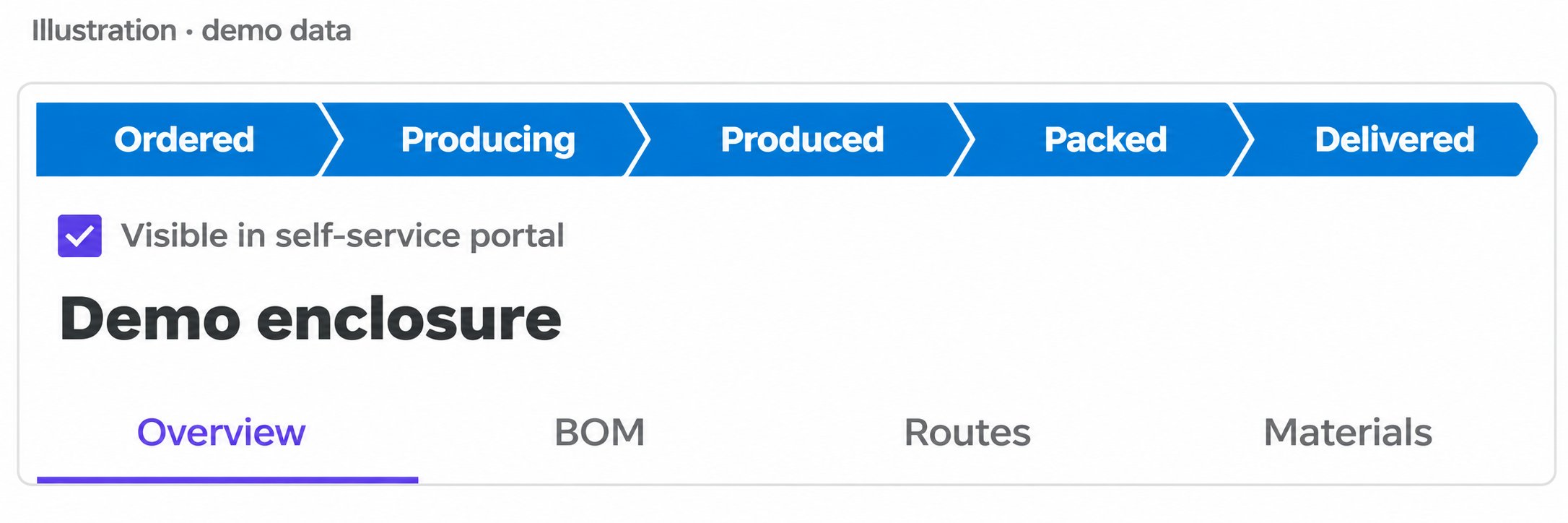
Localized illustration with demo data, not a verified English vendor screen: the status bar and portal visibility control in a QF project.
Choose the route
A customer can start a request in the QuotationFactory portal, or staff can enter a request received by email as a QuotationFactory project. In either case, the project is calculated and reviewed in QuotationFactory. Portal visibility does not by itself mean that the customer placed or accepted an order.
The QF Edge Connector’s export triggers and enabled routes are configured per installation. After the configured export, check the corresponding result in Oseon.
Single parts and assemblies
The customer-order import creates a position for each part in the exported bill of materials, using its total project quantity. This is a part list; do not assume that nested assemblies or subassemblies are recreated as an Oseon assembly structure. Check the positions and quantities against the QuotationFactory project. The selected working-plan mapping depends on the part’s activities and the installation’s settings. The parts interface processes eligible sheet-cutting parts; tube processing uses a separate configured route. Other purchased or material items may appear in order positions, but an order position does not guarantee creation of a corresponding Oseon article. Check article and material availability in Oseon.What reaches Oseon
Before export
For sheet parts, check the part number and selected material and make sure the required operations have Oseon mappings. The validation mode determines whether a missing material or other error is reported or prevents that part from being sent. CAD and drawing documents must be present in the project and supported by the configured exchange to reach Oseon; document attachment to operations is optional. Working plans are created only when enabled and mapped. A customer-order import requires the project identity and a customer address with street, postal code, city and country. A different delivery address can be passed when present. Delivery conditions, work-plan selection and optional document handling depend on the setup. Check prices, quantities and requested delivery date in QF before export. For an existing sheet part, the integration can send an update when QF carries its matching external key. Its update payload is narrower than a new-part payload: it includes notes, drawing number and revision, customer, working plan and documents, but does not include the material or CAD filename. A create conflict is skipped. Check the existing article after a revision; do not assume every changed field was updated.Project identity and progress
The customer-order import carries the QuotationFactory project ID as its external identity and the project reference separately. The Oseon order number is an Oseon reference; use both when tracing an order. When customer-order status feedback is configured, Oseon Released maps to QF Producing, Finished to Produced, Delivered to Delivered, and Cancelled to Cancelled. Oseon Incomplete and Valid do not change the QF project status. Other Oseon states are not mapped by this feedback route. Check the configured feedback route and the actual project status in QF.Check a bent part
Boost uses the configured machine and tools to calculate a bend solution. QuotationFactory receives the verdict and messages; a setup report can accompany the result when available. A part can be manufacturable, manufacturable with a warning, or not manufacturable. The verdict informs the calculation and does not block it. A user can override it in QuotationFactory; this is a human decision, not a new Boost calculation.Transfer and review an order
1
Export the project
Complete the QuotationFactory project and move it through the configured export status.
2
Review in Oseon
For parts-only processing, check the resulting articles. For a customer-order route, check the order, positions and articles. For a production-order route, check the production orders. Compare the applicable quantities, material, drawings and working plan with the project.
3
Complete preparation
Resolve missing information before continuing work preparation.