

1
Open the manufacturing order
In Odoo Manufacturing, open the order. Its UNS Integration tab shows the read-only UNS Work-order Reference. Creating an order or changing tracked order or operation information produces a snapshot.
2
Follow the work in the receiving system
The configured shop-floor system receives order information through the integration route. A snapshot of a draft is not a release command. Follow your agreed process to decide when work starts.
3
Open the work order
Open the relevant work order and its UNS Integration tab. Identity shows the operation reference, execution owner and work-center slug. Latest Feedback shows the latest type and time, external state, reported quantity, note and observed duration.
4
Check what changed in Odoo
Look at normal Odoo time tracking, work-order and manufacturing-order states, or component stock movements, as appropriate. The feedback fields show what was reported; the normal Odoo records show whether a booking or completion occurred.
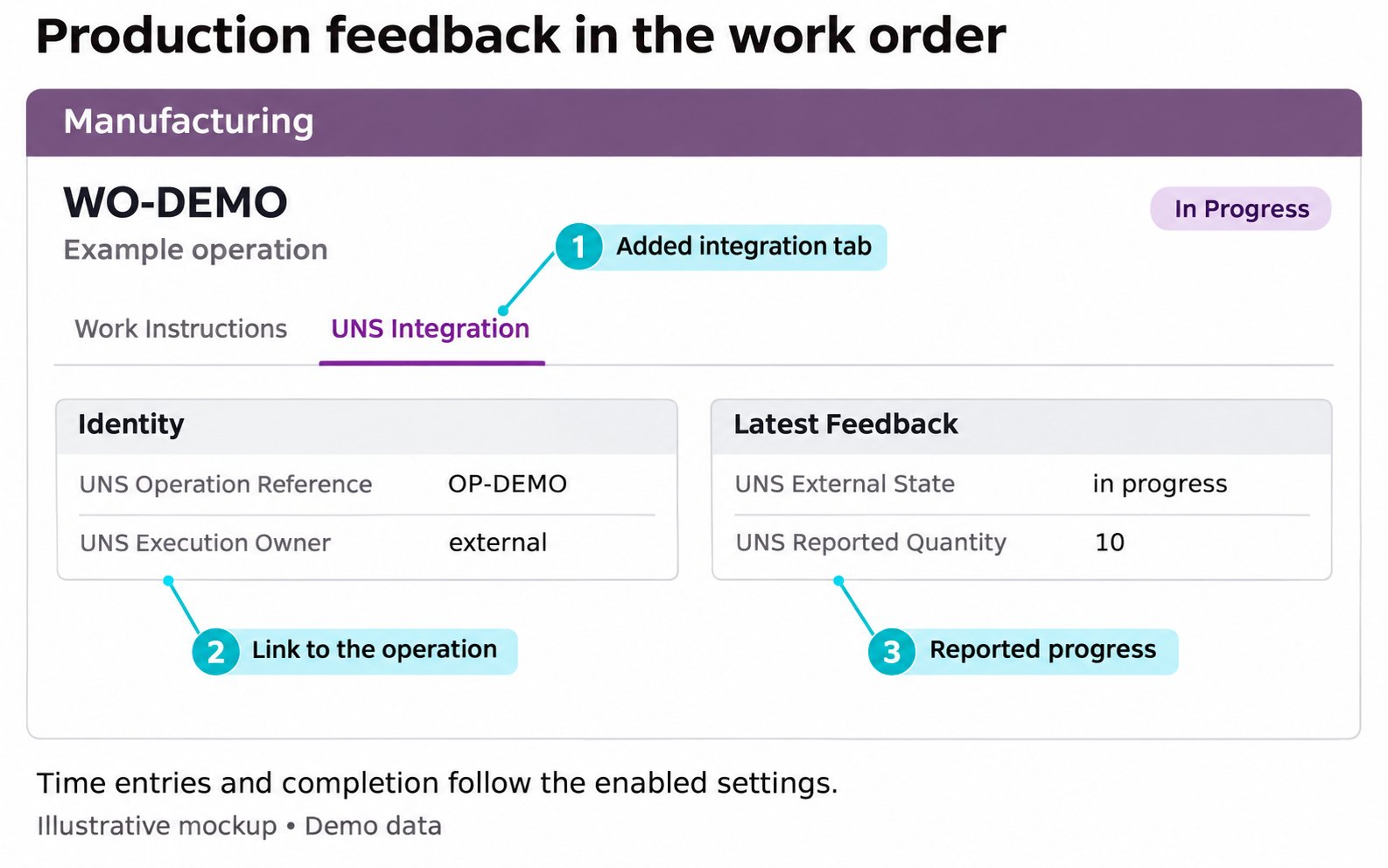
Illustrative mockup of a work order's UNS Integration tab. Layout and available fields vary by installation.