

From quotation to payment
1
Export the project
Complete the project in QuotationFactory and use your configured export process. A successful import returns an Odoo reference to QuotationFactory. Keep the project reference for your search.
2
Find the draft in Odoo
Open the quotation using the returned reference. If the optional workspace is installed, open Sales → Orders → QF Projects. The default Current QF Projects filter can hide older or incomplete imports; remove it if needed. The result is a normal Odoo quotation linked to its source.
3
Review the imported work
Check customer, quantities, prices, terms and attachments against the source. With the optional workspace installed, open QF BOMs to inspect the linked Odoo bills of materials and operations. Without it, find the bills of materials through standard Odoo Manufacturing. The QuotationFactory tab shows source information when the workspace is installed. If something is missing, check the troubleshooting guide before confirming.
4
Confirm the order
After customer acceptance and your normal commercial checks, according to your company process, click Confirm on the Odoo quotation. Its state changes to a sales order and Odoo follows its configured procurement and manufacturing rules. A QF Ordered status alone does not do this. An incomplete import blocks confirmation.
5
Follow production and delivery
Open the linked manufacturing orders and work orders in Odoo. Use Production x/y on a QF-linked order when the optional workspace is installed. Complete production through the normal Odoo process, then open the delivery, check quantities and validate it. A partial delivery records only the quantities delivered.
6
Create and confirm the invoice
On the sales order, use Create Invoice, choose the relevant option and Create Draft. Review the draft invoice and click Confirm to post it. Ordered-quantity invoicing can be available after order confirmation; delivered-quantity invoicing depends on validated deliveries and can include a partial delivery.
7
Record payment
On the confirmed invoice, use Pay, then Create Payment. Odoo normally shows In payment until bank reconciliation; configuration can mark it Paid immediately. QF2Odoo does not create invoices, collect payments or reconcile them.
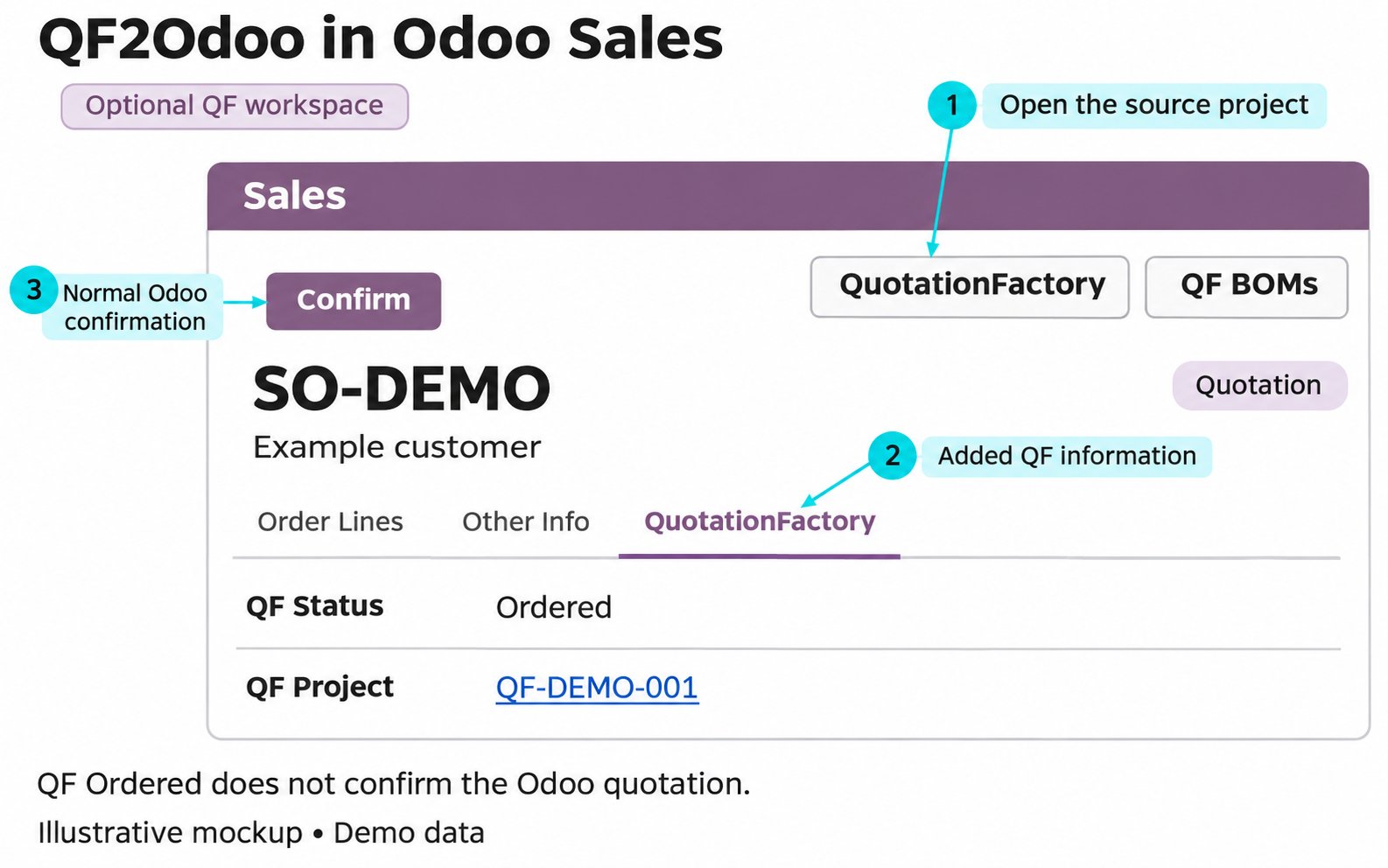
Illustrative mockup of a quotation with the optional QF workspace. Layout and available fields vary by installation.